Why this page exists
Wi-Fi installation for home offices is shaped by how the space is used, not just by the service itself. Home offices bring their own operating constraints, and this page pairs what wi-fi installation actually involves with what that environment changes about it.
Good Wi-Fi comes from deciding where signal needs to be strong, then placing access points so that each area gets a solid signal from one AP without excessive overlap from others. The target most designs work to is around -67 dBm at the edge of each coverage area for voice and video, with signal comfortably above the local noise floor. Placement follows from that number and from the walls between the AP and the users.
The house is competing with the work
A home office shares its connection with everything else in the house, and household demand is highest during exactly the hours that matter least to the household and most to the person working. Streaming, gaming, backups, and connected devices all contend for the same circuit and, if the office is on wireless, for the same airtime.
The second factor is position. Home offices frequently end up in a spare bedroom at the far corner of the house, which is often the worst wireless position in the building — furthest from the router, through the most walls.
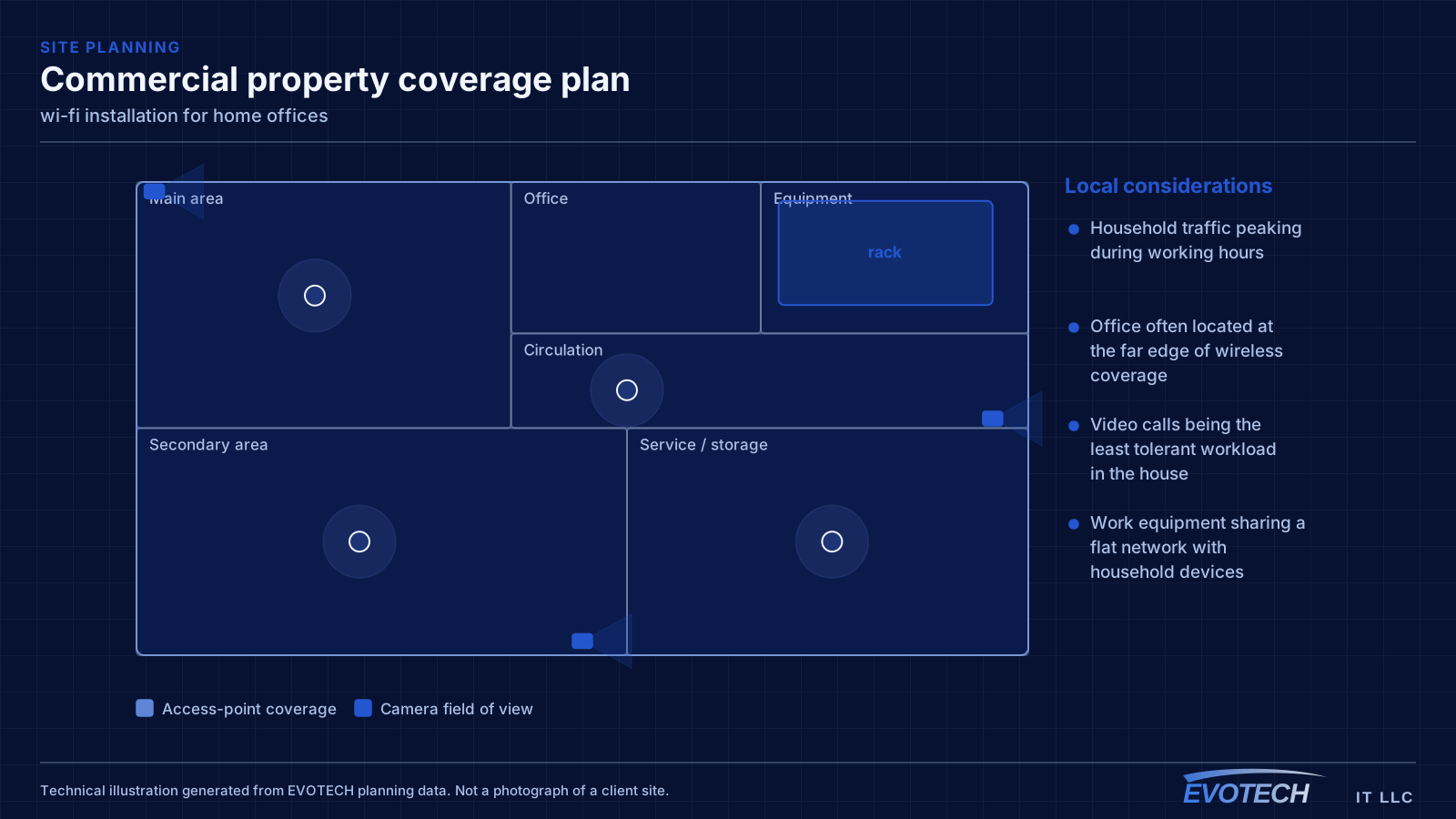
- Household traffic peaking during working hours
- Office often located at the far edge of wireless coverage
- Video calls being the least tolerant workload in the house
- Work equipment sharing a flat network with household devices
What wi-fi installation usually involves
The most common complaint is a call dropping when someone walks from one room to another. That is a roaming problem, and it usually traces back to coverage design: either the cells overlap too little, so the client hangs onto a dying signal, or they overlap too much on the same channel, so everything is contending.
The second recurring problem is that the wireless network is blamed for a wired or internet issue. A device showing full signal bars and still performing badly is pointing at something past the access point — an oversubscribed uplink, a saturated internet circuit, or a switch port negotiating incorrectly.
- Dead zones behind masonry, tile, mirrored surfaces, and metal-framed glass
- Co-channel contention from too many APs sharing the same channel
- Clients holding onto a distant AP instead of roaming to a closer one
- 2.4 GHz congestion from neighbouring networks and non-Wi-Fi interference
- Access points fed by repeaters instead of cable, halving effective throughput
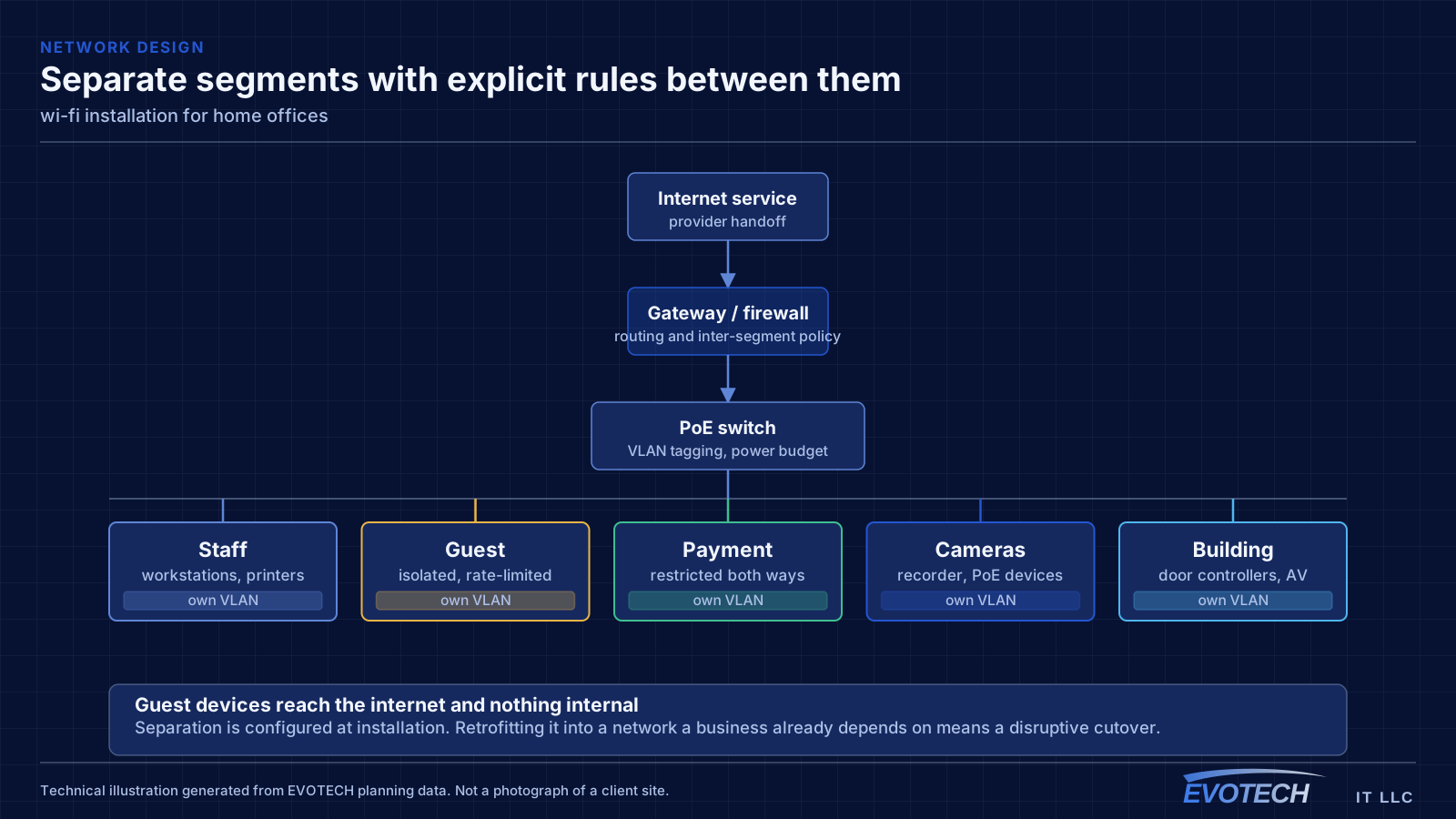
- Guest and business traffic sharing one network with no separation
The single cable that fixes most of it
A wired connection to the desk eliminates the variables that cause most home-office call problems: signal strength, interference from neighbouring networks, and contention with household devices for airtime. In slab-foundation construction the run typically goes up into the attic and down an interior wall, which is why the destination wall matters more than the distance.
Where the office must stay wireless, the fix is placement rather than power. An access point in the hallway near the office, mounted on the ceiling and connected by cable, serves the room far better than a more powerful router at the other end of the house. Turning up transmit power on a distant router mostly raises interference.
Separation is worth doing even at home. A separate network for work equipment, distinct from household devices and from guests, limits what a compromised household device can reach. This is straightforward on most current equipment and costs nothing but configuration.
- Wired run to the desk as the highest-value single change
- Access point placed near the office rather than more power from a distant router
- Attic-to-interior-wall routing in slab-foundation homes
- Separate network segment for work equipment
- Stationary household devices wired to free up airtime
Signal level, channel reuse, and why backhaul decides everything
Wireless capacity comes from having multiple non-overlapping channels in use across a space. In North America, 2.4 GHz offers three non-overlapping 20 MHz channels, which is why it congests so quickly — in a dense building the neighbours are using them too. The 5 GHz band offers far more channels, including DFS channels that require radar detection and which many designs skip unnecessarily. The 6 GHz band, where equipment and regulations permit, adds substantially more spectrum with the caveat that only newer client devices can use it.
- Roughly -67 dBm at the coverage edge as a working target for voice and video
- Three non-overlapping 20 MHz channels at 2.4 GHz; many more at 5 GHz
- Wider channels raise peak throughput but reduce reuse and raise contention
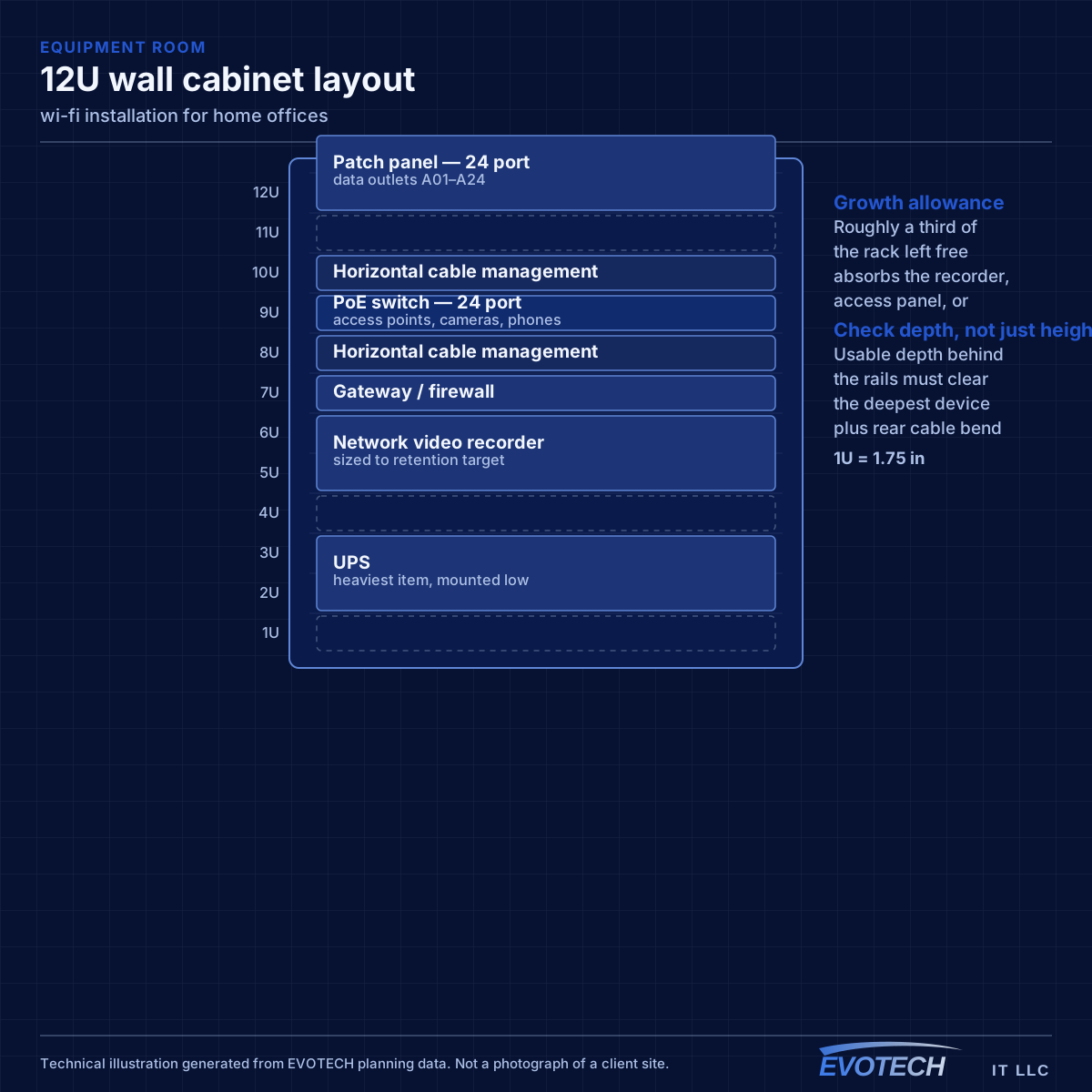
- Wired backhaul to every AP wherever cable can reach
- Separate guest traffic from business systems at the network level
Frequently asked questions
What changes about wi-fi installation in home offices?
The operating environment does. Home offices bring specific constraints — how the space is used, when work can happen, and what has to keep running — and those shape the wi-fi installation plan as much as the service's own technical requirements.
Why does a call drop when walking between rooms?
That is a roaming symptom. Either the coverage areas do not overlap enough, so the device holds a fading signal past the point of usefulness, or they overlap heavily on the same channel, so the handoff happens into a congested cell. Both are fixed by adjusting placement, power, and the channel plan rather than by adding another access point at the same settings.
Why do work calls degrade in the afternoon?
Usually contention. Household demand rises when people are home, and if the office is on wireless it competes both for the internet circuit and for airtime on the same radio channel. A wired connection to the desk removes the airtime half of that immediately, which is why it is the first thing worth doing.