Why this page exists
Network troubleshooting for home offices is shaped by how the space is used, not just by the service itself. Home offices bring their own operating constraints, and this page pairs what network troubleshooting actually involves with what that environment changes about it.
Effective troubleshooting is a process of elimination against a specific, reproducible symptom. 'The internet is slow' is not yet a diagnosis — slow for whom, on which devices, wired or wireless, at what times, to which destinations. Those answers usually point at a layer before any equipment is touched.
The house is competing with the work
A home office shares its connection with everything else in the house, and household demand is highest during exactly the hours that matter least to the household and most to the person working. Streaming, gaming, backups, and connected devices all contend for the same circuit and, if the office is on wireless, for the same airtime.
The second factor is position. Home offices frequently end up in a spare bedroom at the far corner of the house, which is often the worst wireless position in the building — furthest from the router, through the most walls.
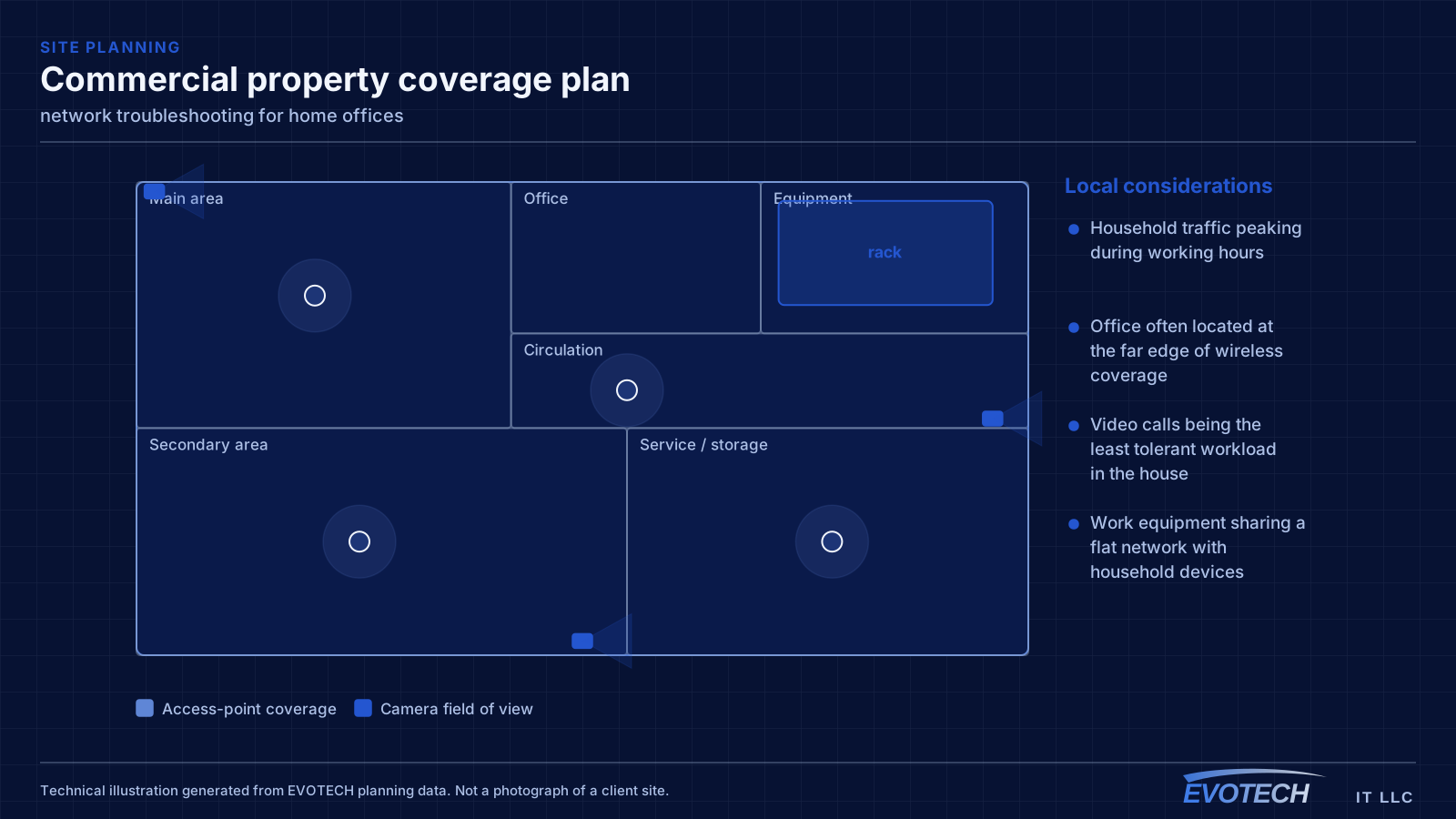
- Household traffic peaking during working hours
- Office often located at the far edge of wireless coverage
- Video calls being the least tolerant workload in the house
- Work equipment sharing a flat network with household devices
What network troubleshooting usually involves
The single most useful distinction is between a problem affecting everything and a problem affecting one device or area. Everything at once points toward the shared path — the circuit, the gateway, or the main switch. One area points toward that area's cabling, its access point, or its switch. One device points at the device or its port.
Timing is the second most useful clue. A problem that appears mid-morning and disappears at night is capacity related. A problem that appears after dark suggests something engaging on a schedule — camera illuminators pushing a PoE budget over is the classic example. A problem that appears at random is more often physical: a marginal termination, a failing port, or a cable that moves.
- Whole-site symptoms pointing at the circuit, gateway, or core switch
- Area-specific symptoms pointing at local cabling or wireless
- Time-correlated symptoms indicating capacity or a scheduled load
- Random symptoms suggesting a physical fault or marginal link
- Duplicate addressing or a rogue device handing out addresses
- Switching loops flooding a network after a cable was patched in twice
- Speed or duplex mismatches producing errors rather than outright failure
The single cable that fixes most of it
A wired connection to the desk eliminates the variables that cause most home-office call problems: signal strength, interference from neighbouring networks, and contention with household devices for airtime. In slab-foundation construction the run typically goes up into the attic and down an interior wall, which is why the destination wall matters more than the distance.
Where the office must stay wireless, the fix is placement rather than power. An access point in the hallway near the office, mounted on the ceiling and connected by cable, serves the room far better than a more powerful router at the other end of the house. Turning up transmit power on a distant router mostly raises interference.
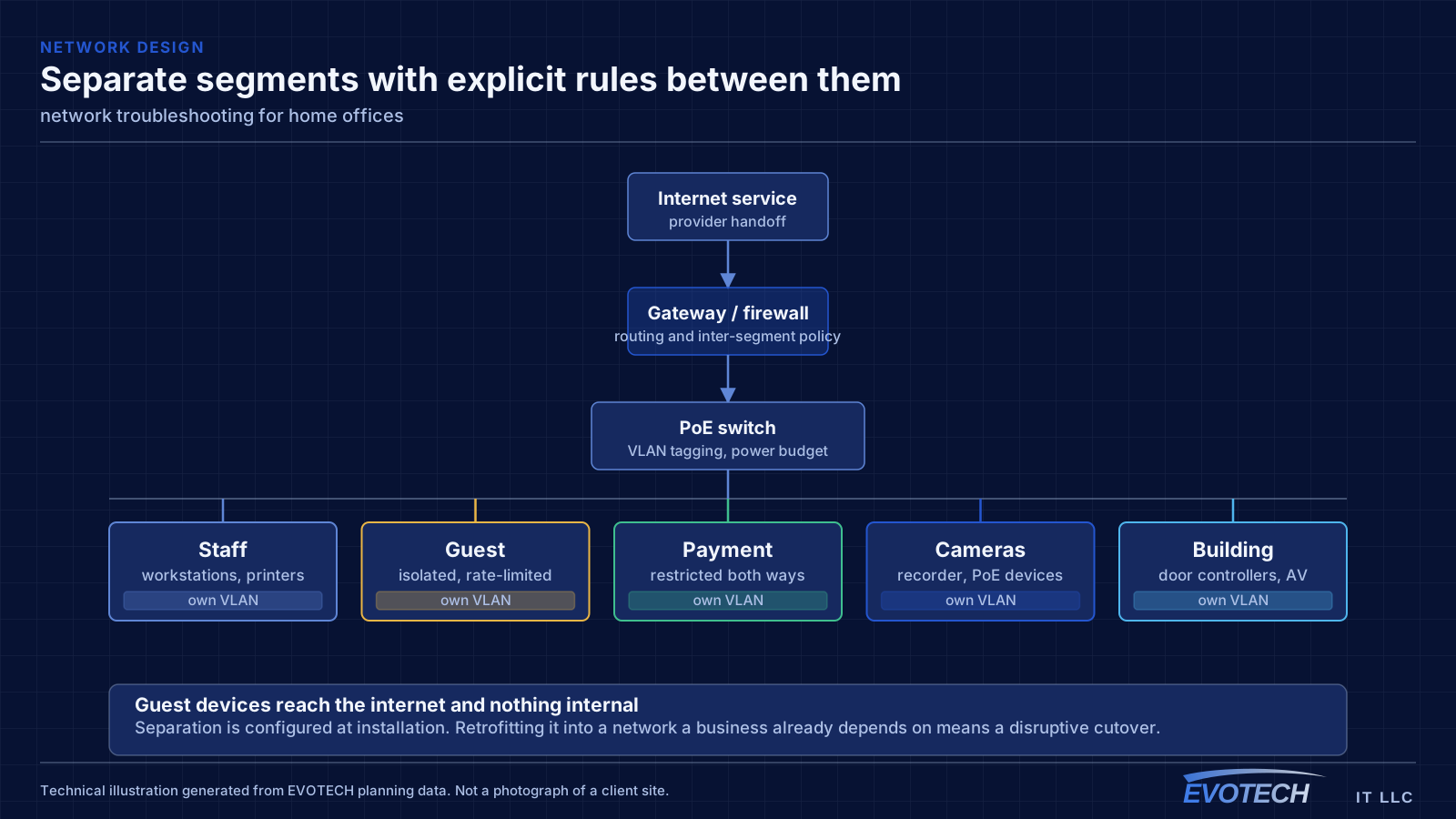
Separation is worth doing even at home. A separate network for work equipment, distinct from household devices and from guests, limits what a compromised household device can reach. This is straightforward on most current equipment and costs nothing but configuration.
- Wired run to the desk as the highest-value single change
- Access point placed near the office rather than more power from a distant router
- Attic-to-interior-wall routing in slab-foundation homes
- Separate network segment for work equipment
- Stationary household devices wired to free up airtime
Isolating the layer, and reading what the equipment already knows
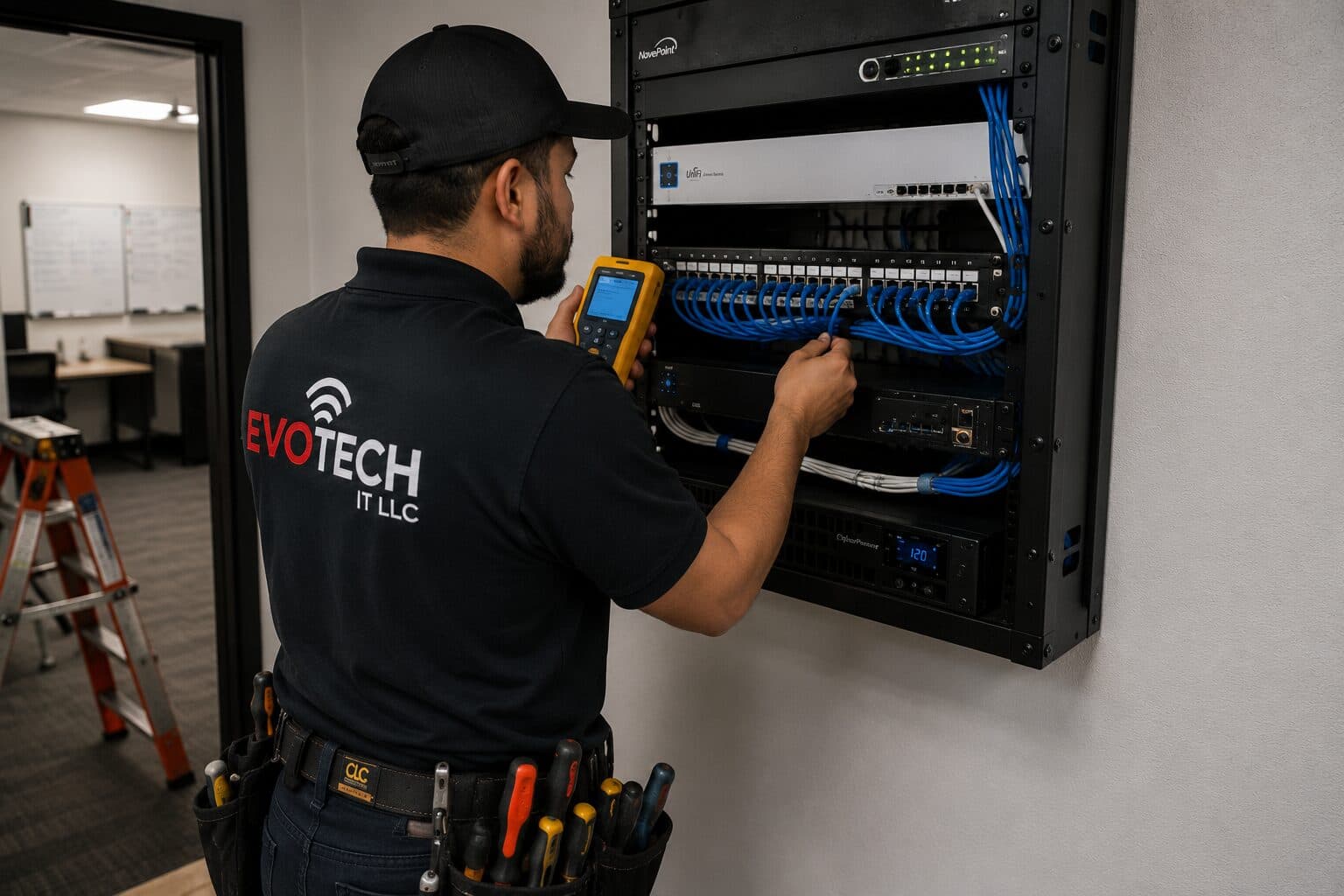
Switch port statistics are the most underused diagnostic resource on most networks. Error counters, discards, and negotiated speed for each port are already being recorded, and a port showing rising errors identifies a cable or connector problem without any additional testing. A port that negotiated 100 Mbps when it should be at 1 Gbps points at a damaged pair or a marginal termination.
- Read switch port error counters, discards, and negotiated speeds first
- Measure wireless signal and noise at the complaint location, not at the access point
- Identify which AP and channel the affected client is actually using
- Measure at the gateway to separate internal problems from circuit problems
- Check for duplicate addressing and unexpected devices offering addresses
- Look for loops when a network degrades suddenly after a change
Frequently asked questions
What changes about network troubleshooting in home offices?
The operating environment does. Home offices bring specific constraints — how the space is used, when work can happen, and what has to keep running — and those shape the network troubleshooting plan as much as the service's own technical requirements.
Why is the network slow only in the afternoon?
Time-correlated symptoms usually mean capacity rather than a fault. Something is consuming the shared resource at that time — backups, updates, more people on site, or a scheduled process. Measuring at the gateway during the slow period, and comparing it to a quiet period, distinguishes a saturated circuit from an internal bottleneck quickly.
Why do work calls degrade in the afternoon?
Usually contention. Household demand rises when people are home, and if the office is on wireless it competes both for the internet circuit and for airtime on the same radio channel. A wired connection to the desk removes the airtime half of that immediately, which is why it is the first thing worth doing.